I’ve been spending quite a bit of time recently looking at agentic AI, particularly how we move from interesting demos into something you could reasonably let loose inside an enterprise.
One thing is becoming increasingly obvious.
The LLM isn’t really the important bit.
Or, perhaps more accurately, it isn’t the bit we should be building our architecture around.
The Australian Signals Directorate (ASD) recently published Agentic AI Harnesses: The layer above the model, and it describes something I think is genuinely important when designing agentic systems: the harness.
What’s a harness?
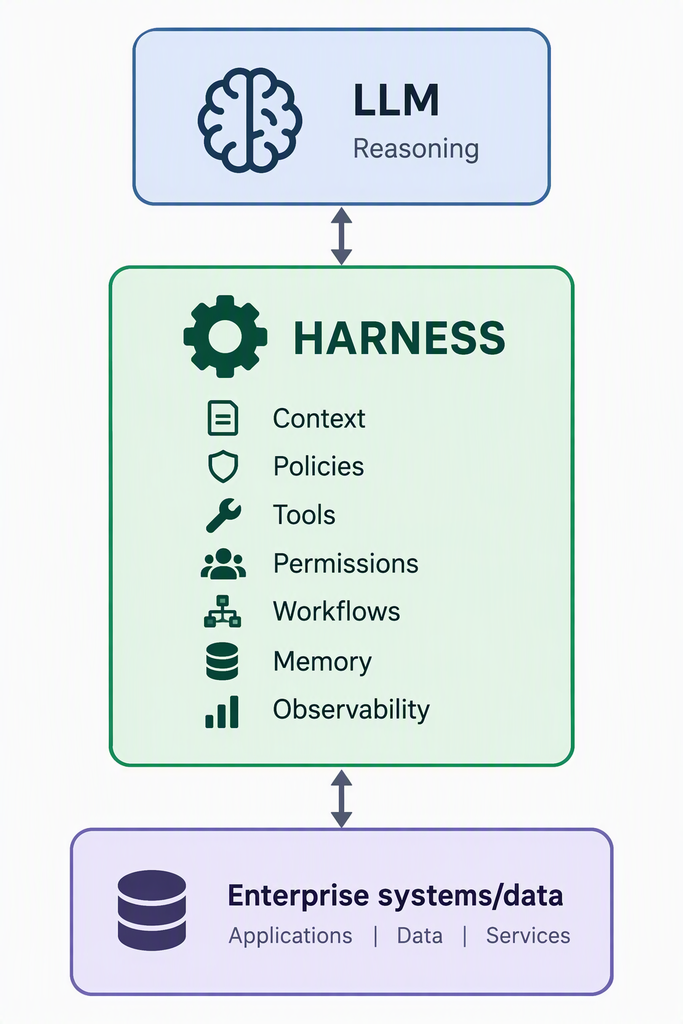
ASD describes the harness as everything around the LLM that allows it to interact with the real world. Think:
- context
- tools
- connectors
- permissions
- memory
- execution environments
- workflows
- audit and observability
The LLM decides what it thinks should happen. The harness determines what it is actually capable of doing and what it is allowed to do.
That’s a pretty important distinction.
If an LLM decides:
delete that file
there is a considerable difference between the model generating that response and your system actually executing rm. The harness sits between those two things.
This looks remarkably familiar
When I looked at Microsoft Agent Framework 1.0 recently, one of the architectural decisions I liked was the separation between Agents and Workflows.
- Agents handle reasoning and interpretation.
- Workflows provide deterministic execution and control.
- Middleware provides logging, telemetry, filtering and compliance.
- MCP and tools provide controlled access to external capabilities.
ASD’s harness model puts a useful security architecture around essentially that same problem.
That separation matters.
Treat the LLM as replaceable
This is probably the most interesting point in the ASD paper. A harness can support multiple LLMs, and a well-designed harness can survive model upgrades. ASD therefore argues that the harness is likely to become the longer-term organisational investment.
I think that’s exactly the right way to look at it.
We should be constructing systems where:
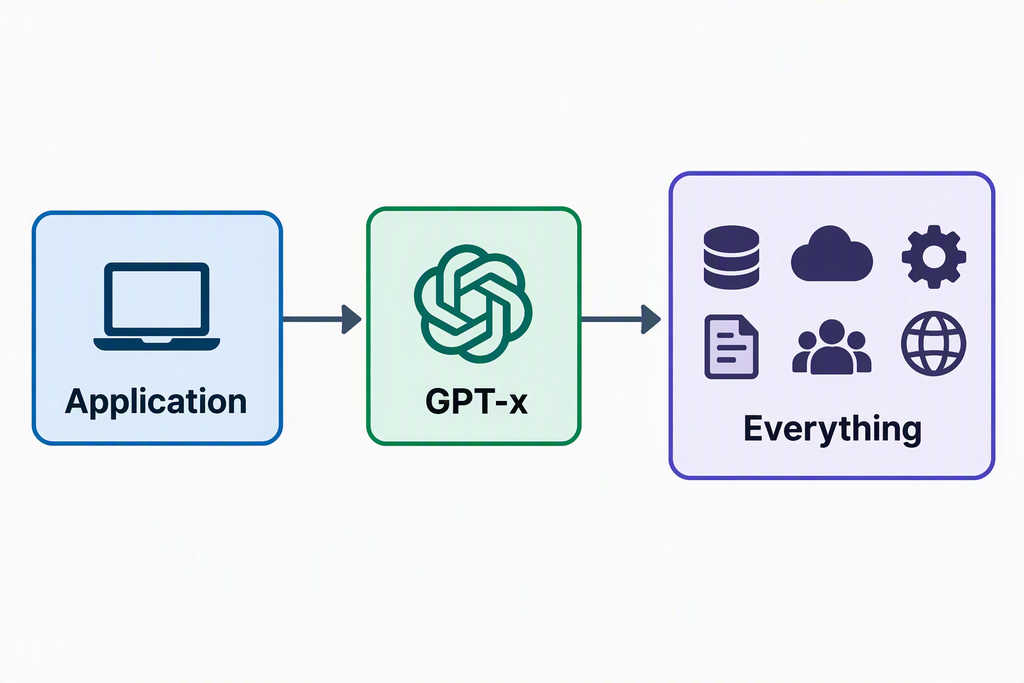
Becomea:
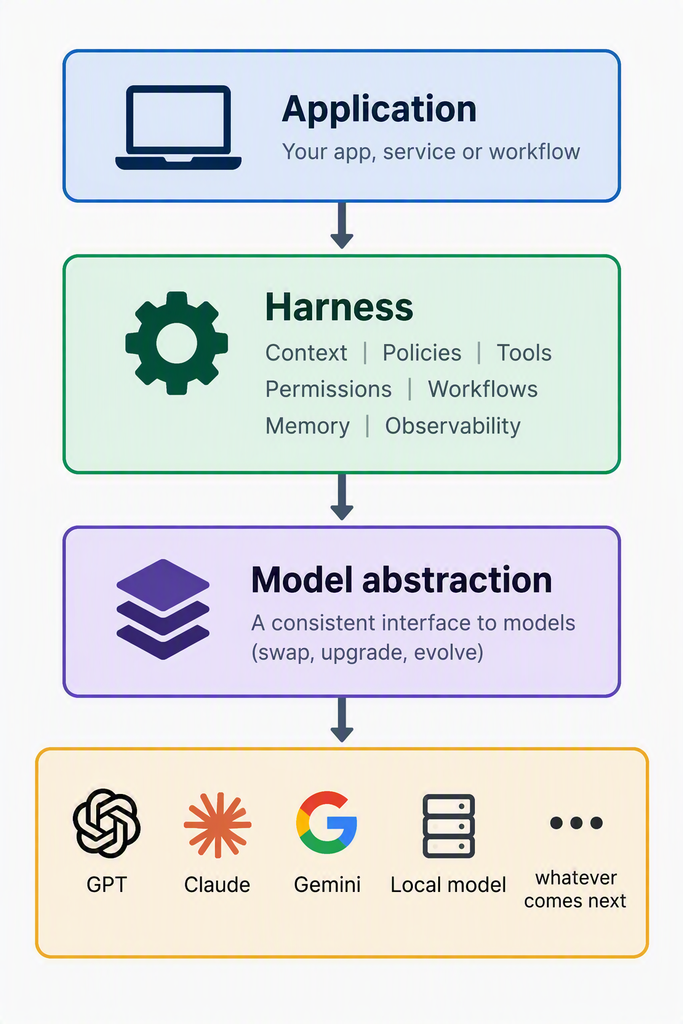
Models can and will change.
Your identity model, permissions, workflows, integrations, audit trail and security boundaries shouldn’t need to.
If you’ve gone through the prompt engineering phase of this little journey, then this will likely resonate with you. Change the model and there’s a reasonable chance you’ll need to revisit the prompts, assumptions and expected outputs. The harness is your opportunity to remove a lot of that pain. Especially when you combine it with schema contracts (see below).
Security outside the model
There’s another consequence. Prompt engineering isn’t your security boundary.
ASD notes that prompt injection cannot currently be reliably solved inside the model. Controls therefore need to exist across the harness, connected systems and organisational governance.
That’s just normal security architecture when you think about it. Don’t trust the clever thing in the middle.
Constrain it.
- Least privilege.
- Explicit permissions.
- Controlled tools.
- Validated inputs and outputs.
- Human approval for sensitive operations.
- Logging everything useful.
- Isolated execution environments.
ASD specifically recommends these sorts of harness-level controls rather than relying on model safety behaviour alone.
Context is also a security boundary
One particularly interesting recommendation concerns context.
ASD recommends keeping context focused on the task, retaining only relevant information and deleting stale context rather than continually summarising it. Durable facts and decisions should instead be stored externally.
That’s interesting for both security and engineering.
Huge, endlessly growing agent conversations aren’t necessarily good architecture, nor are they cheap to operate. Small bounded contexts and external durable state start looking considerably more sensible. So do sub-agents.
ASD recommends isolating exploratory tasks into sub-agents with only the tools, context and permissions required for that particular operation. That’s basically least privilege applied to agent architecture.
The interesting engineering isn’t the AI
And I think this is where enterprise agentic AI becomes considerably more interesting. We’ve all seen the vibe-coded demo apps where someone whips up a cool demo concept.
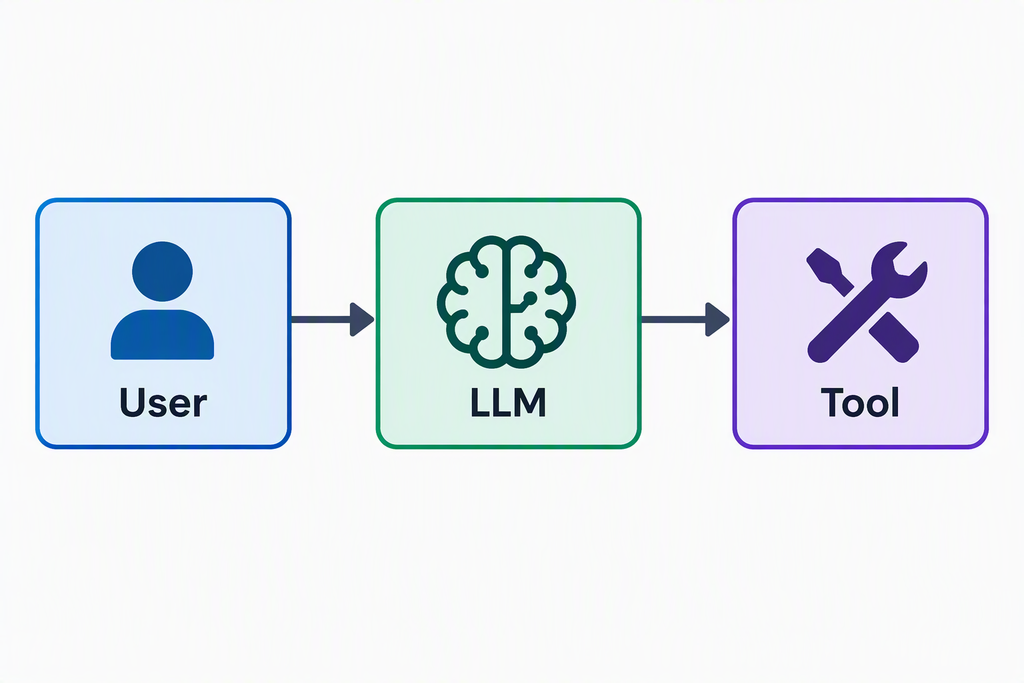
The production problem is:
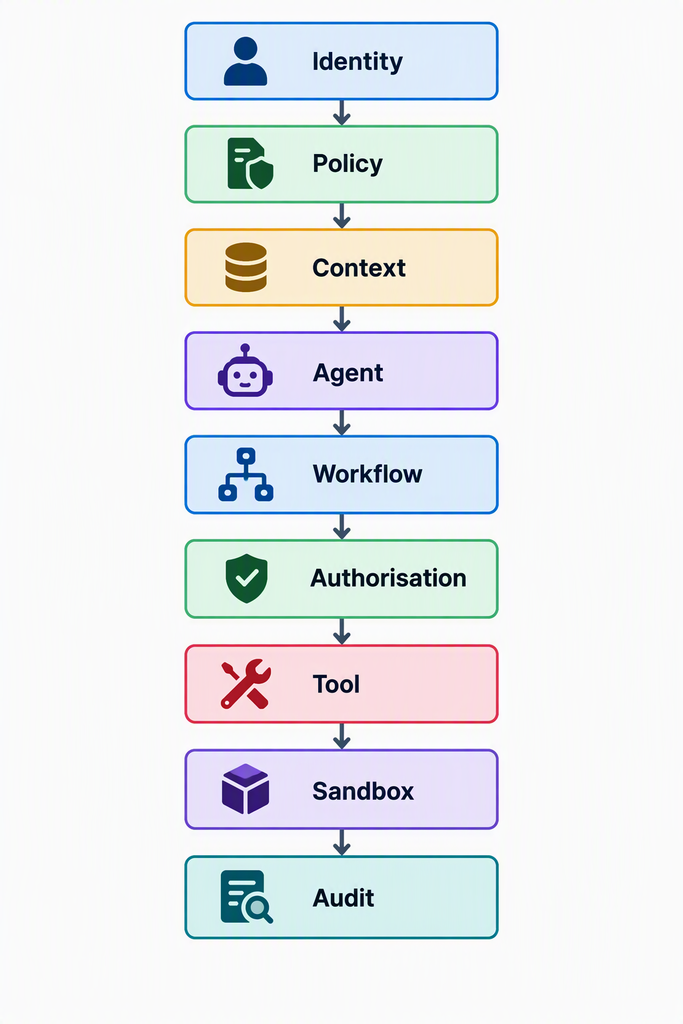
The LLM is only one component and quite possibly the easiest component to replace.
ASD’s three key takeaways summarise it rather nicely: organisations control the harness rather than the LLM, organisational value and governance accumulate in the harness, and the surrounding harness ecosystem should be a primary focus for security and risk management.
That’s probably where we should be concentrating our engineering effort as well.
Because ultimately, don’t give the monkey a gun is still a perfectly reasonable architectural principle.
How can we use the harness effectively
AKA Reducing the ability for the LLM to ‘innovate’
Currently, I am introducing typed contracts on both sides of the LLM, rather than treating the LLM boundary as text:
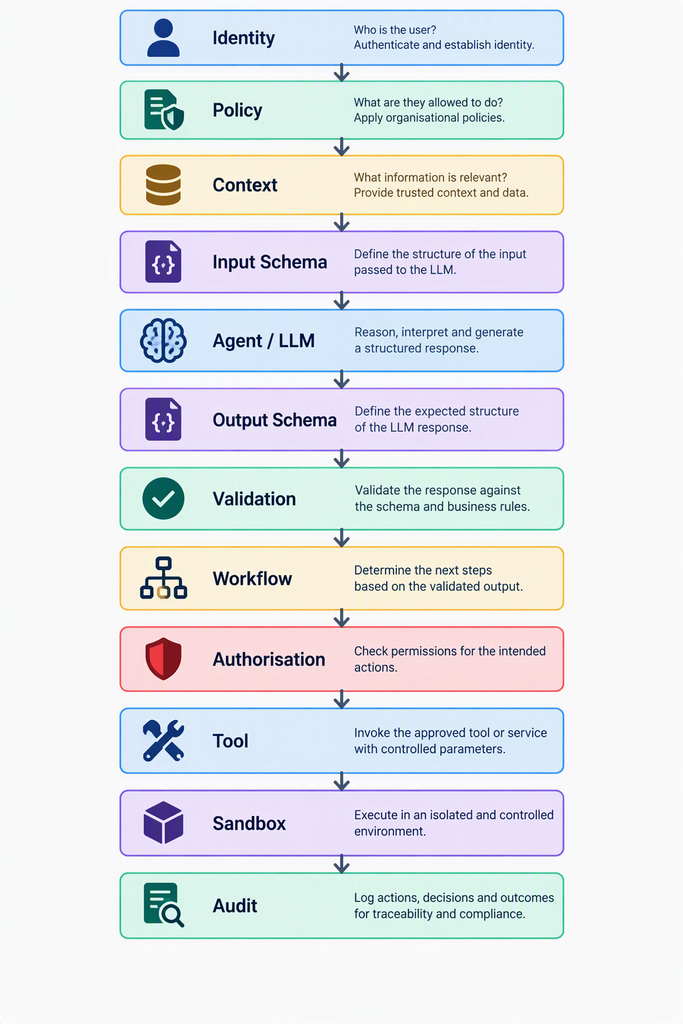
The important distinction is:
The LLM produces intent. The schema establishes a contract. Validation establishes whether software may trust that contract structurally. Policy and authorisation decide whether anything may actually happen.
That lines up well with current structured-output practice: schemas constrain shape, while application validation and authorisation remain separate concerns.
In practical terms I’m experimenting with defining three contracts.
Not simply input and output, but three explicit boundaries:
- AgentRequest defines what we’re prepared to give the model.
- AgentResponse defines what we’re prepared to accept back from the model.
- ToolRequest defines what the deterministic side of the system is permitted to ask a tool to execute.
This gives us something much closer to a conventional software interface around a decidedly unconventional software component.
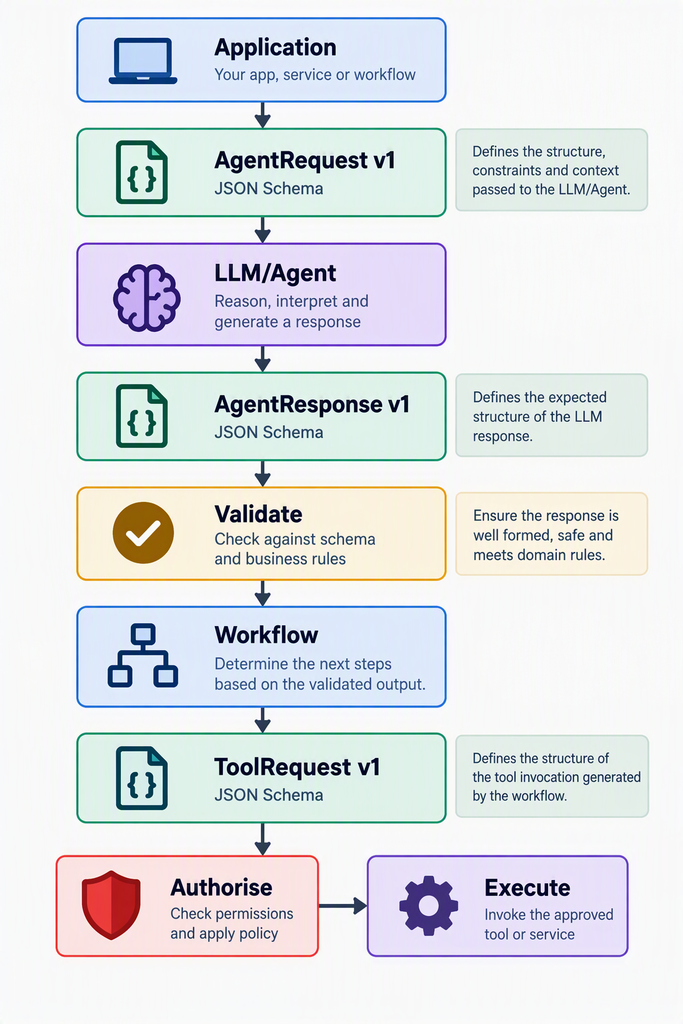
Critically, I wouldn’t let the LLM directly construct the privileged tool invocation. The LLM can propose intent. It doesn’t get execution authority. No matter what the cool kids tell me, I think that’s a nuts idea on anything resembling a production system. Yes, please review the Monkey with a Gun architectural principle if you’re considering this.
There’s another useful side effect here. These schemas are APIs. If I change AgentResponse v1, that’s an API contract change regardless of whether GPT, Claude or something running locally is sitting behind it.
That means I can version it, test it, regression test model upgrades against it and, importantly, fail closed when the model produces something I don’t understand.
References
Australian Signals Directorate, Agentic AI Harnesses: The layer above the model, September 2026. [cyber.gov.au]
Looking at the Microsoft Agent Framework 1.0, Made For Cloud. [madeforcloud.com]
Structured Outputs: Why Production AI Needs Schemas, Not Just Prose [https://www.truefoundry.com/blog/llm-structured-outputs-json-schema]